Cloud Bridge PRO
Cloud Bridge creates a live, encrypted connection between your desktop and the Claude App. Your code flows to Claude. Claude’s changes flow back. No copy-paste, no context switching.
Cloud Bridge requires a QuickSift Pro license. Your Pro license includes one year of Cloud Bridge access. See Licensing for details.
How It Works
Cloud Bridge is a coordination service that connects QuickSift Desktop to the Claude App through encrypted cloud storage. Here’s the key architecture:
- Files are encrypted on your machine before leaving your device, using per-session Fernet (AES-128-CBC) encryption. A unique key is generated for each session.
- Direct transfer — Encrypted files move directly between your machine and secure cloud storage via time-limited presigned URLs. The bridge coordinator never touches your file contents.
- Real-time notifications — WebSocket connections alert QuickSift Desktop instantly when Claude sends changes back.
- Automatic cleanup — All files are deleted from cloud storage when your session ends. Nothing persists between sessions.
Setting Up Cloud Bridge
There are two sides to set up: QuickSift Desktop (sends your files) and Claude (receives and works on them). Both are quick.
Part 1: QuickSift Desktop
Open your project
Open (or create) a QuickSift project with the files you want Claude to access.
Enable Cloud Bridge
Click the Cloud Bridge button in the toolbar. If this is your first time, you’ll be prompted to enter your Pro license key.
Start a session
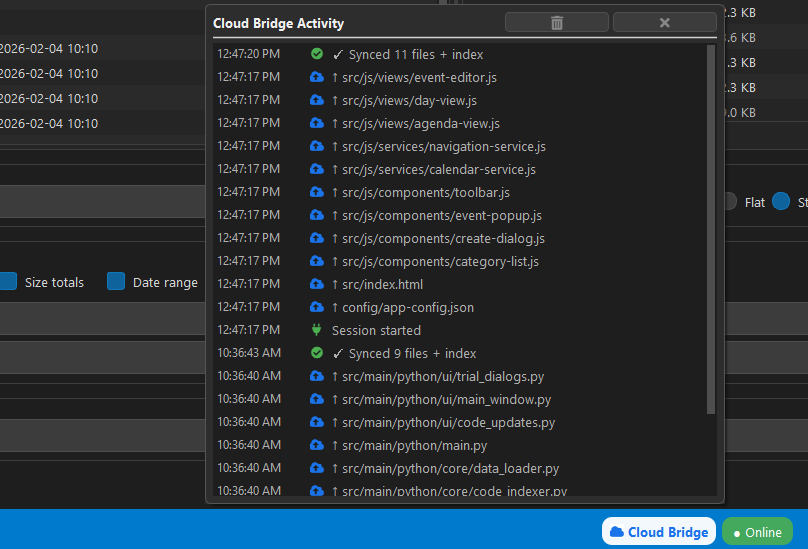
Click Connect. QuickSift establishes a session and encrypts + uploads your selected files to temporary cloud storage.
Enable Auto-Sync (recommended)
Toggle Auto-Sync on. When files change on disk, QuickSift automatically re-uploads the updated versions.
Part 2: Claude (One-Time Setup)
You need to set up a Claude Project so Claude knows how to connect to your QuickSift session. This only needs to be done once per codebase.
Download the skill file
In QuickSift Desktop, click Download Skill File in the Cloud Bridge panel. This generates a .md file with your license key embedded.
Add the skill file
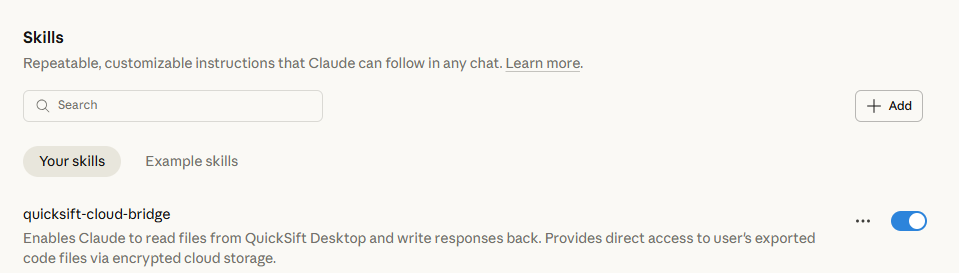
In the Claude App, open Settings, select Capabilities in the left menu bar, scroll down to the Skills area, and upload the QuickSift Cloud Bridge file.
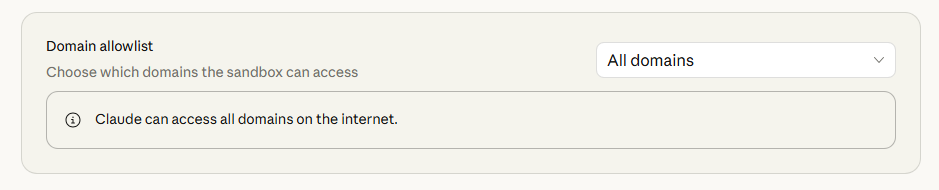
While in Capabilities, also check that the Domain allowlist is set to All domains. This gives Claude access to the bridge server so it can read and write your files.
Create a Claude Project
Create a new Project for your codebase (e.g., “My Backend API”).
Set the project instructions
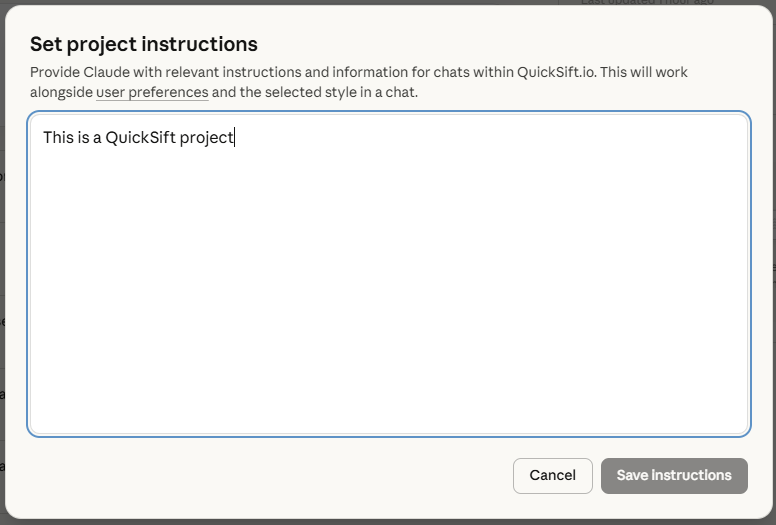
Add this line to the project’s custom instructions:
This is a QuickSift projectThis triggers Claude to automatically connect to Cloud Bridge at the start of every conversation in this project.
Tip: You only do this setup once per project. Every new conversation in the Claude Project automatically connects to your QuickSift session.
The Workflow
Once both sides are connected, here’s what a typical session looks like:
Start a conversation
Open a new chat in your Claude Project. Claude automatically connects to Cloud Bridge and reports which files are available.
Ask Claude to work on your code
Claude fetches files as needed, reads them, and makes targeted edits. You discuss the changes just like you would with a colleague.
Review and approve
When Claude is ready, it asks for confirmation before sending changes. You approve, and Claude uploads the modified files.
Changes arrive on your desktop
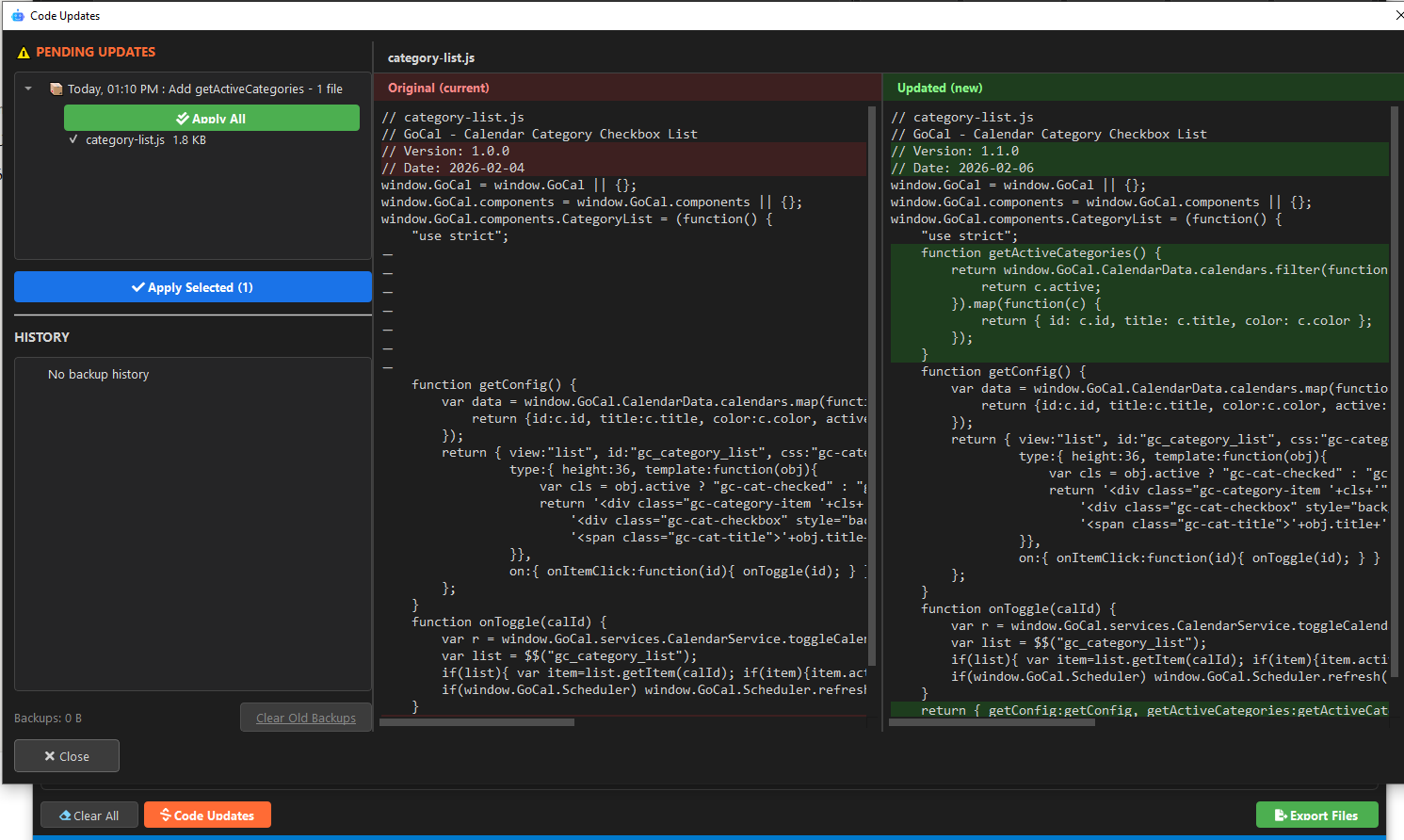
QuickSift’s Code Updates button turns orange. Click it to see exactly what changed with a side-by-side diff view.
Accept or restore
Review the diff and accept the changes. A backup is created automatically — one click to restore if anything goes wrong.
File Requests
Sometimes Claude needs a file that wasn’t in your original selection. Cloud Bridge handles this automatically:
- Claude requests the file through the bridge
- QuickSift Desktop receives the request and auto-syncs the file
- Claude picks it up on the next interaction — no manual intervention needed
File requests work best with Auto-Sync enabled. If auto-sync is off, you’ll see a notification in QuickSift to manually approve the request.
Conversation Handoffs
When a conversation gets long, Claude can save a “handoff summary” describing what was accomplished and what’s pending. Start a new conversation in the same project, and Claude picks up where you left off.
Security & Privacy
| Feature | Detail |
|---|---|
| Encryption | Fernet (AES-128-CBC with HMAC), per-session unique keys |
| Transfer | Direct to/from encrypted cloud storage via presigned URLs |
| Bridge coordinator | Manages sessions and keys only — never sees file contents |
| Storage | Session-scoped, temporary. Auto-deleted when session ends. |
| Backups | Created locally before any file is overwritten |
For full details, see our Privacy Policy.
Troubleshooting
Claude says “Could not connect to QuickSift”
- Make sure QuickSift Desktop is running with Cloud Bridge connected
- Check that your session hasn’t expired (sessions last 12 hours of inactivity)
- Verify your Pro license is active
Files aren’t appearing in Claude
- Ensure the files are checked in your QuickSift project
- If Auto-Sync is off, manually re-sync after making changes
- Check the Cloud Bridge panel for any error messages
Changes aren’t arriving on my desktop
- Look for the orange Code Updates button in QuickSift
- Check your WebSocket connection status in the Cloud Bridge panel
- Try disconnecting and reconnecting Cloud Bridge